
Set up two free TradingView indicators
Put AlgoAlpha’s Adaptive SuperTrend on price and its Momentum Bias Index in a separate pane. The setup uses the two indicator slots listed for TradingView Basic.
AlgoAlpha ·
Add both scripts to one chart
Start with a clean chart
Sign in and open a TradingView chart. Pick a symbol and timeframe you know. Record the exchange and interval so you can compare the same chart later. Free a slot if your existing layout already uses its limit.
Add the trend overlay
Open Machine Learning Adaptive SuperTrend on TradingView and select Use on chart. If you search from the chart, choose the listing published by AlgoAlpha. Leave the default inputs for the first pass and note the trend color and volatility regime shown on your chart.
Add momentum in its own pane
Open Momentum Bias Index on TradingView and add it to the same chart. In the indicator settings, leave the overlay option off so the oscillator sits below price. Use the zero line as a reference while comparing the size of recent positive and negative swings.
Save the exact setup
Record any changed settings and save the layout. Favorite both scripts from the Indicators dialog for later. If you change the timeframe or the inputs, create a new observation rather than overwriting the old one.
Read trend and momentum on the same candle
Use the same closed bar for both tools. If the trend overlay remains positive while positive oscillator swings get smaller, record the two readings independently. Recheck on the next closed bar to see whether the difference persists. The same idea applies to a persistent negative trend and weakening negative swings.
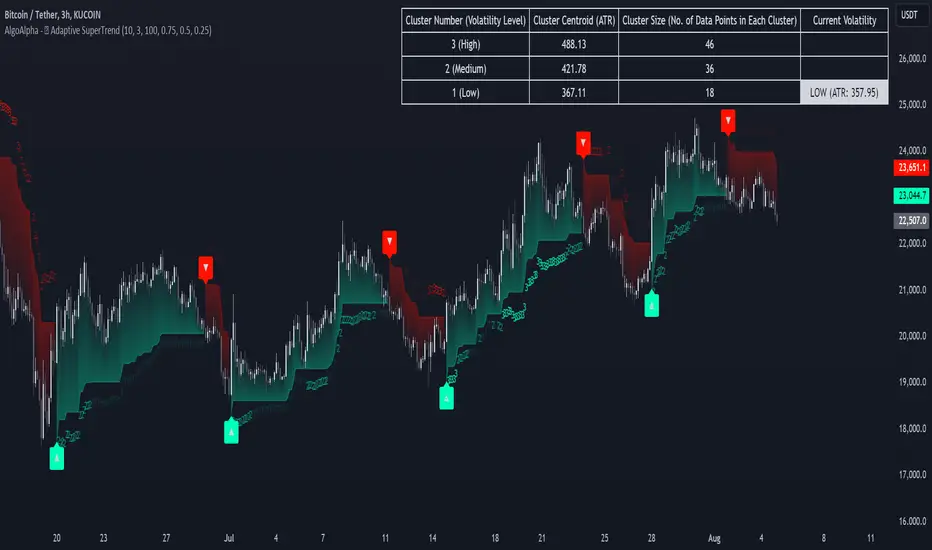
For a simple log, write down symbol and exchange, timeframe, candle close time, SuperTrend state, and which momentum swing changed. Compare the notes on a trending stretch and a sideways stretch. If your plan and timeframe support replay, advance one candle at a time and write down the first bar on which each reading becomes visible.
Troubleshoot the setup
- TradingView asks you to upgrade.
- Check the indicator slots already in use and the access label on the listing. Both AlgoAlpha scripts above are open source. TradingView’s plan limits still apply.
- Both tools land on the price chart.
- Open Momentum Bias Index settings and check its overlay option. Its oscillator view gives you a separate pane.
- The chart looks different after a reload.
- Check the symbol, exchange, interval and indicator settings first. Compare closed-bar observations against what you saw live, and use TradingView’s repainting guide to understand timing differences.
Official AlgoAlpha settings and examples
See the settings and chart examples for Machine Learning Adaptive SuperTrend and Momentum Bias Index. To swap one indicator for a different task, browse the AlgoAlpha-only directory.